The New A2SF Ticket Experience
A2SF is excited to introduce an improved digital ticket experience for our premiere events. If you opted to receive digital tickets for our upcoming shows, please see the instructions below on how to access and share them.
Once logged in, select your event. The QR code for your tickets will appear a few hours before the performance.
A screenshot or printed ticket/confirmation email will not be valid. Digital tickets must have the live QR code through wallet.a2sf.org for admission to the event. The QR code on a digital ticket refreshes every 30 seconds as the event time approaches. This is for security purposes and to prevent unauthorized ticket resale. A printed ticket or screenshot of a ticket would be invalid in seconds. You will need to log in to wallet.a2sf.org to access and share your tickets to other recipients in your party.
Step-By-Step Instructions
Access Your Ticket QR Code
Tap the button above or visit wallet.A2SF.org on your smartphone or tablet. We recommend starting in a new browser window in Safari or Chrome.
Log in with the email address and password you use to purchase A2SF tickets.
If previously used Guest Checkout and don’t have a password (or have forgotten your password), choose the “Log in Without a Password” option. You will receive an email with a 6-digit code you can copy and paste to access your account.
Or, you can Reset Your A2SF Password.
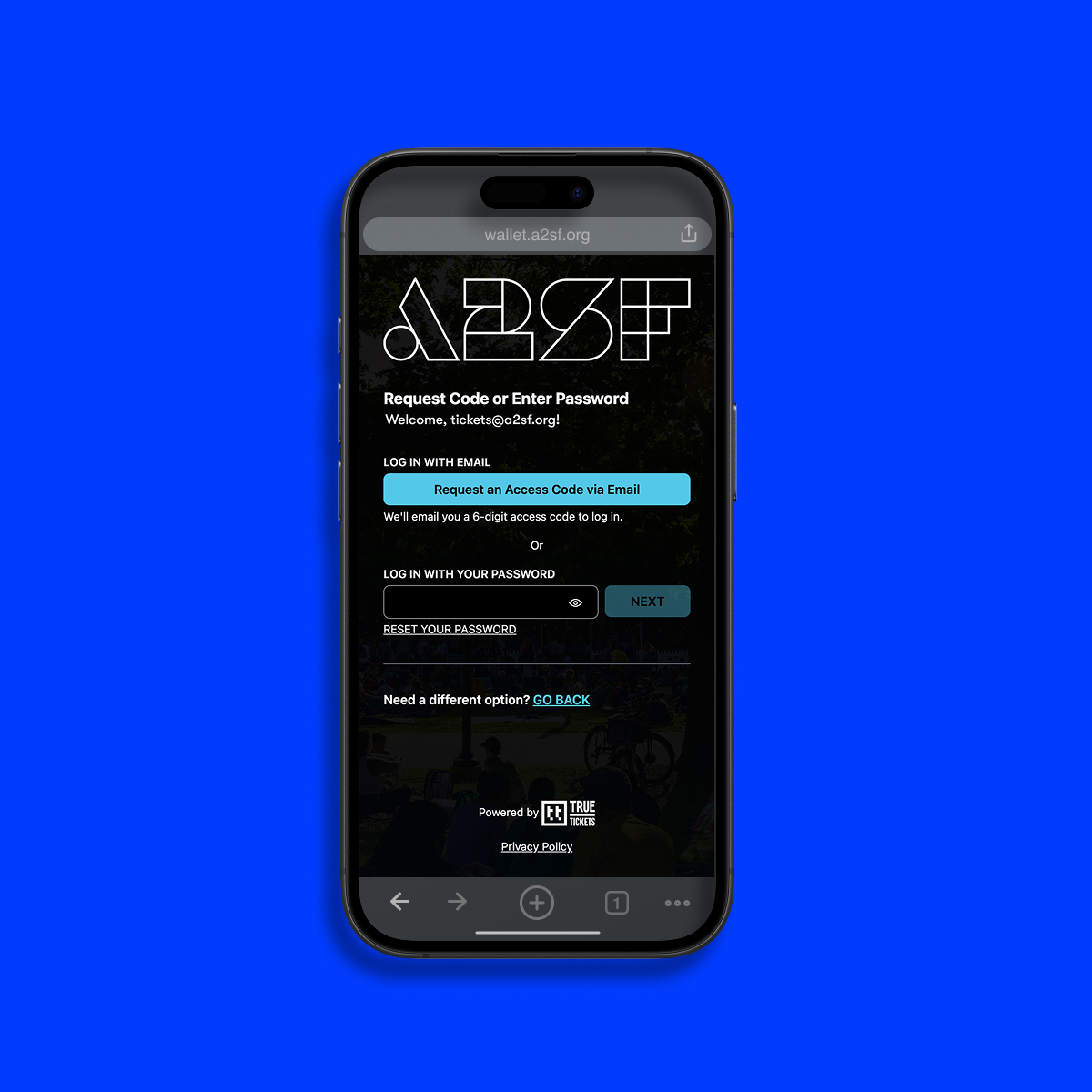
Once logged in, select your event. The QR code(s) for your ticket(s) will appear a few hours before the performance.
For iPhone
After following the instructions above to access your digital tickets, iPhone users can add their tickets to their Apple Wallet. This enables tickets to be saved in advance without logging in again on the day of the performance.
For Android
Please follow the instructions above to access your digital tickets on your web browser. Support for Google Wallet is coming soon.
How to Share Your Digital Tickets
We recommend that you share your digital tickets an hour in advance if you won’t be arriving at the venue at the same time as others in your party. Any recipients will need to log in to access their tickets and may need extra time.
Log in to wallet.a2sf.org using the steps above and select your event.
Tap the “Share” button, enter the recipient’s name, and select the tickets you want to share.
Read and agree to the Terms of Use, and tap “Next.”
Review and confirm the name and selected tickets, and tap “Confirm.”
Tap the “Share with your guest” icon and send the link to the recipient via text, email, or another app of your choice. Please note that certain pop-up blockers may interfere with this functionality. Alternatively, you can copy and paste the ticket link (by tapping the link icon) and send it manually to your guests.
Need to send the link again? Select “Share this invite again.”
FAQ
Why can't I get my QR code until 3 hours before the show?
Our refreshing QR code is delivered three (3) hours prior to showtime to deter fraudulent ticket sales.
Can I print my tickets or use a screenshot?
No. To deter fraudulent ticket sales, DCPA Ticket Wallet uses a refreshing QR code which frequently changes. Printouts of digital tickets, screenshots, or tickets without a QR code will not be accepted.
Do I need a data plan to access digital tickets?
Wifi is not available in all venues. Please plan to use your cellular data. If you experience cell phone connectivity issues and are unable to retrieve your tickets, stop by Will Call at the Box Office before your show.
If you don’t have a data plan tied to your smartphone, you may not be able to connect to WiFi outside our venues to access digital tickets upon arrival. We don’t recommend using Digital Tickets if you don’t have a data plan.
If I don't have a smart phone what are my options?
Will Call & Mailed Tickets are typically available.
Contact the UMS Patron Services Office at 734-764-2538.
See current hours
Troubleshooting
What should I do if I'm having technical issues?
If you are unable to retrieve your tickets for any reason, stop by Will Call at the Box Office before your show.
Known Issue with Gmail App (iPhone and Android) : Requesting Access Code not working for some users.
If you attempt to access your tickets by clicking on a link from a A2SF email, you may not be able to properly use the ‘Request Access Code’ feature to log in without a password.
Most Apple Wallet tickets load successfully, but for some patrons, the QR code does not display. This can be caused by a variety of factors, including user or device settings, limited or slow internet connectivity, background updating processes, or other issues.
If your show starts within three hours and your Apple Wallet pass does not display a QR code:
Recommendation: To get your tickets, open a new window in your smartphone’s web browser (Safari, Chrome, etc.) and go to wallet.a2sf.org. Find the event and ticket, and click “Get ticket back from Apple Wallet.” You can then display the QR code in your A2SF Ticket Wallet on your phone for scanning and entrance.
Purchased Tickets Do Not Appear After Logging In
If you log in to wallet.a2sf.org and your tickets do not appear, this may happen for a few different reasons.
It could be too soon:
The QR code(s) for your ticket(s) will appear a few hours before the performance.
It could be under a different email address:
Could your account be associated with a different email address? For example, a patron in our system might have both umich.edu and gmail.com email addresses.
In rare instances, tickets may be affiliated with the email address of another member of your household.
Double Check your ticket delivery method:
Digital tickets will also not appear if you selected a different ticket delivery method at the time of purchase (mail, hold at will call, etc.).
Recommendation: If the above conditions do not apply, please contact the UMS Patron Services Team for assistance at 734-764-2538. You can also go directly to the A2SF box office upon arrival at your event.